LegisComply help
Your first protected prompt.
One step at a time.
Choose where you work, follow the screenshots, and learn how to review what you share with AI.
Screenshots show the current development version. Your installed extension may look slightly different. Select any screenshot to see it full size.
01 / In your AI chat
Use the Chrome extension.
For ChatGPT, Claude, Gemini, Perplexity, and Copilot in your browser.
Install and enable protection.
Open LegisComply in the Chrome Web Store and select Add to Chrome. Open LegisComply from Chrome’s Extensions menu. Pin it if you want easy access.
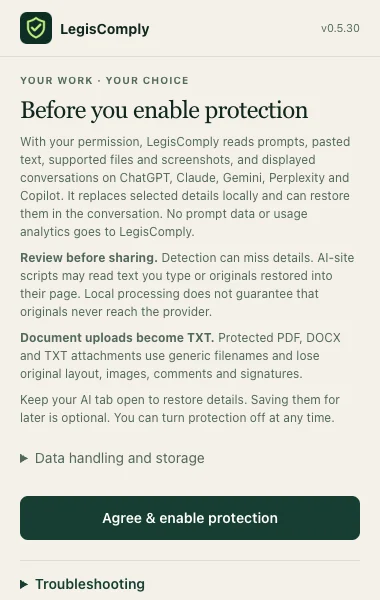
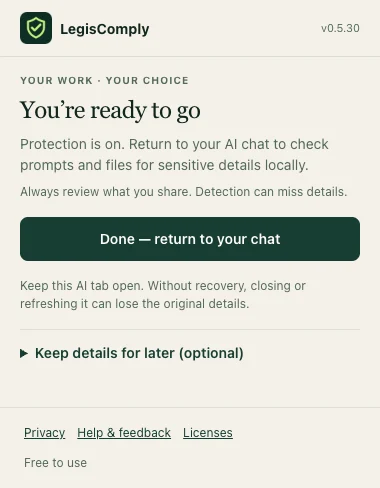
Read the setup information, then select Agree & enable protection. On the next screen, select Done — return to your chat.
 Open full size ↗
 Open full size ↗
Write your prompt, then review the details.
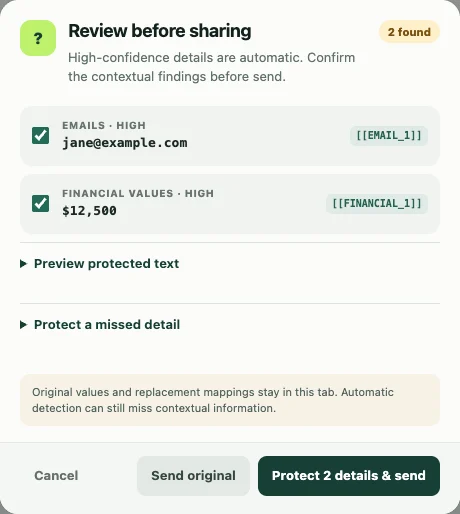
Open a supported AI chat. Start with something fictional, such as Draft a follow-up to jane@example.com about the $12,500 proposal.
Write or paste your text and send it as usual.
When LegisComply opens a review, check each proposed replacement. Open Preview protected text to read what will be shared. If something is missing, open Protect a missed detail, select the text, and choose Protect this.
The review can appear when you paste, send, or attach a file. To request it every time, open the extension’s More settings and turn on Always review text before sending.
 Open full size ↗
Continue with the protected copy.
Choose Protect … & send (or paste / attach, depending on your action). Send original shares the original text instead. Choose Cancel to return to your draft.
For a PDF, DOCX, or TXT attachment, review the extracted text. The extension attaches a protected TXT copy with a generic filename; the original layout, images, comments, and signatures are not included.
Read the answer with the details restored.
LegisComply can restore recognized placeholders in the displayed conversation. Check the result against your source. Use View protected version on a protected message to inspect its placeholders.
Keep the AI tab open. If you want to restore details after reopening a chat, set up Keep details for later (optional) in the extension before closing it, and keep your recovery password safe.
The extension works inside the AI website, whose scripts may read typed or restored originals. To prepare a copy before pasting it into that website, use the browser tool below.
02 / Text & documents
Prepare a copy on the website.
No extension needed. Add your text, review the replacements, then copy the result into your chosen AI tool.
Add the text you want help with.
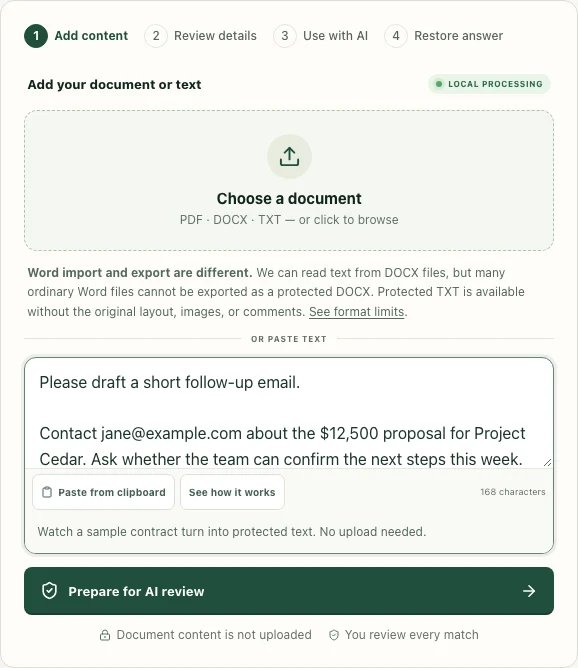
Open the browser tool. Paste an email or document into the text box, or choose a PDF, DOCX, or TXT file. Then select Prepare for AI review.
 Open full size ↗
Check what stays private.
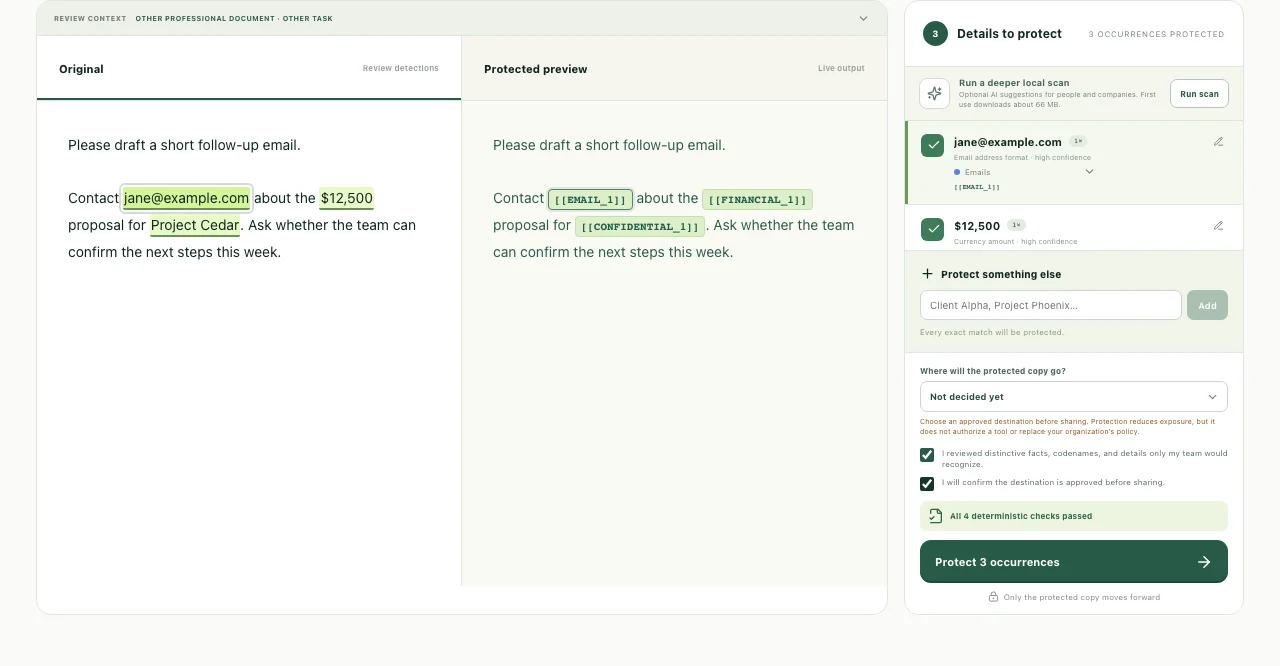
Compare the original with the protected preview. Review the detected details and keep the replacements you need. Add missed names, project titles, or other phrases using Protect something else.
Review distinctive facts and choose where the copy will go. Complete the review checkboxes, then select Protect … occurrences.
 Open full size ↗
Copy the protected text into your AI tool.
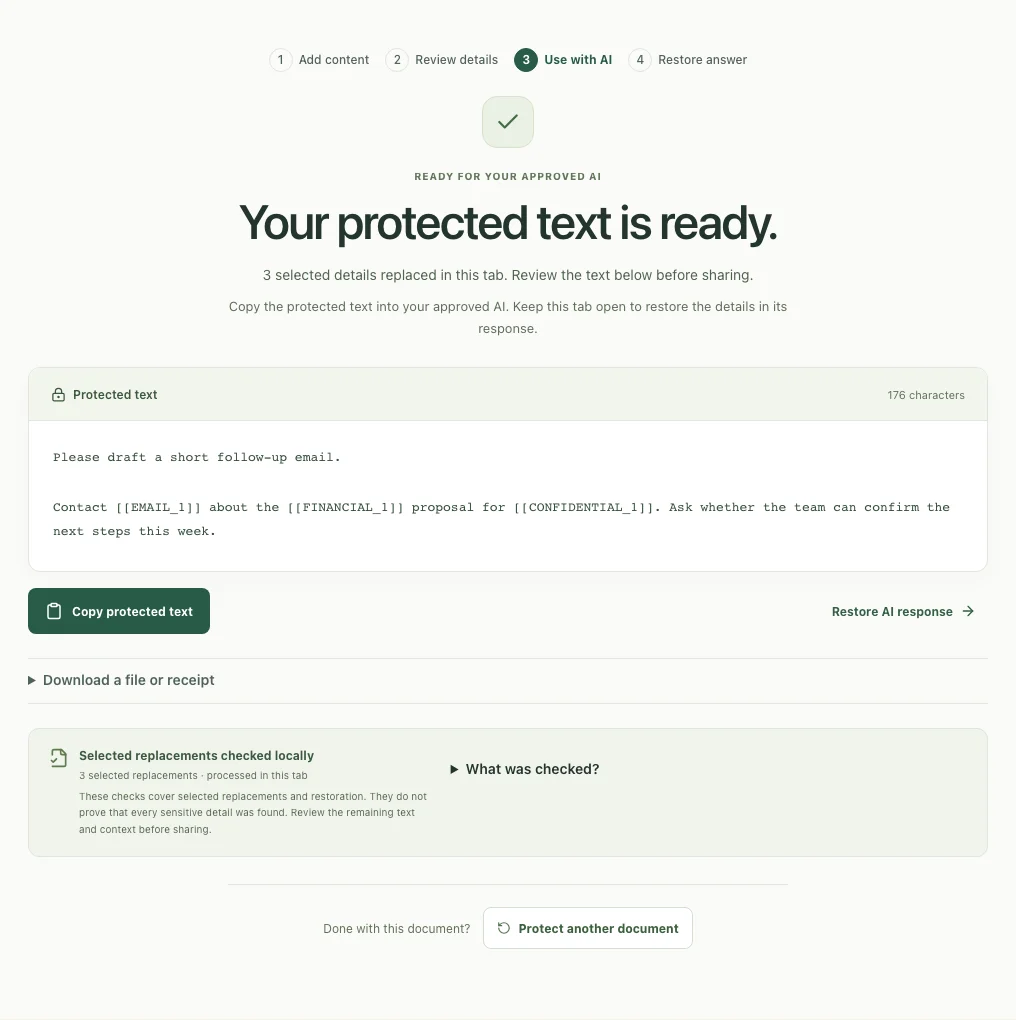
Read the result and select Copy protected text. Paste that copy into your approved AI tool with your question. Keep this LegisComply tab open so you can restore details afterward.
Need a file? Expand Download a file or receipt. Protected TXT is available without the original formatting. Word export supports only a limited set of files; if it is blocked, use the protected TXT copy.
 Open full size ↗
Bring the AI answer back to restore details.
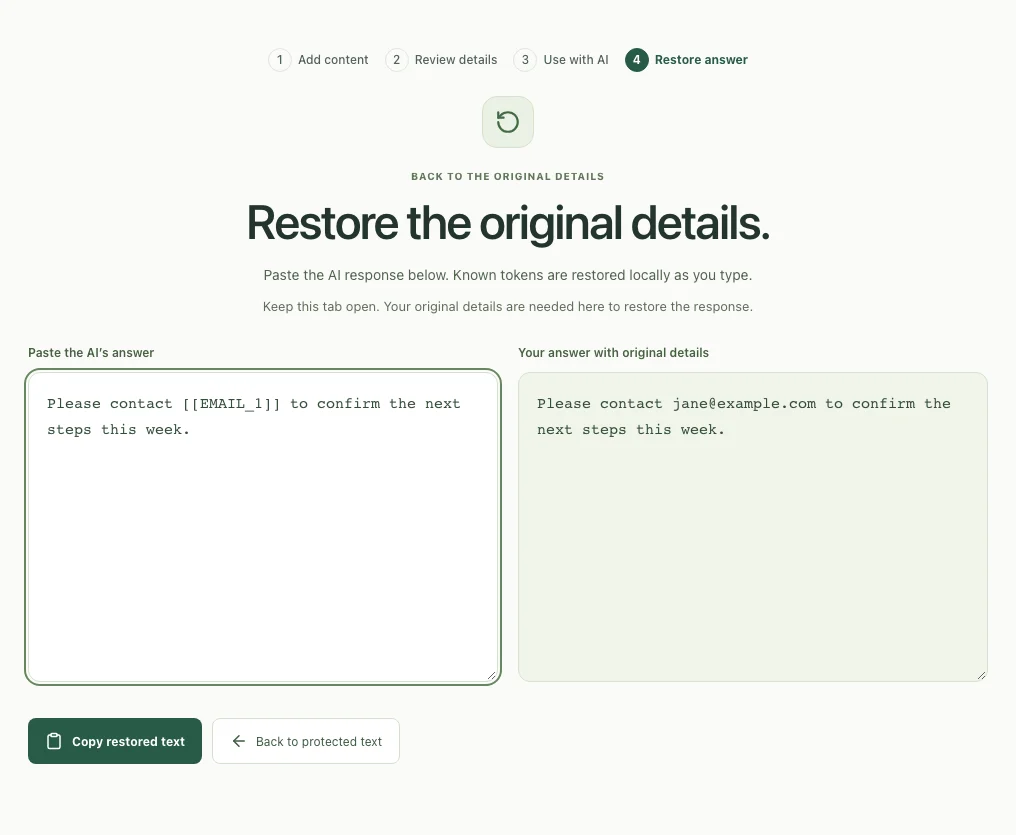
Copy the AI’s answer. In the same LegisComply tab, select Restore AI response and paste it into Paste the AI’s answer.
Recognized placeholders are replaced as you type. Check Your answer with original details, then select Copy restored text. If the AI changed a placeholder, compare with the source instead of guessing.
 Open full size ↗
03 / Images & screenshots
Cover details before sharing an image.
Use the standalone image tool, then attach its downloaded copy wherever you need it.
Choose an image.
Open screenshot redaction. Paste, drop, or choose a PNG, JPEG, or WebP, or select Try a fictional example.
Review the suggested areas and add your own.
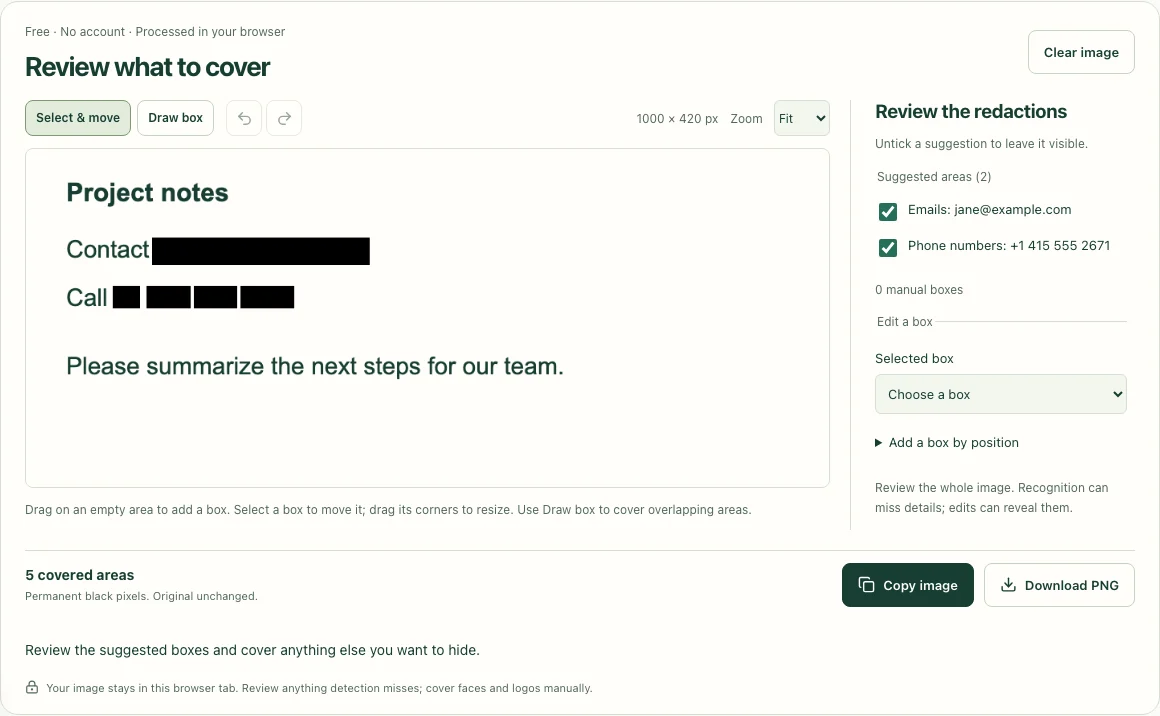
Wait for text recognition. Check the suggested redactions, then drag over anything else you want to cover. Faces, logos, handwriting, and QR codes need manual review. You can also expand Add a box by position to enter exact coordinates.
 Open full size ↗
Download and share the redacted copy.
Select Download redacted PNG, or Copy redacted image if your browser supports it. Open the exported image to check it, then attach that copy. The selected areas become permanent black pixels; your original image stays unchanged.
A little help when you need it
Common questions.
I installed the extension, but nothing happens.
Open the extension and check that protection is enabled. Use a supported AI website in the browser where you installed it. If the chat was open before installation, reload it before starting a new test. Use fictional text first. If you already have protected work in a tab, save recovery before reloading.
I don’t see a review before every message.
Some high-confidence replacements can happen automatically, depending on your settings. Enable Always review text before sending under More settings to request a review even when nothing is detected.
A name or project wasn’t detected.
In the extension review, use Protect a missed detail. In the website tool, use Protect something else. Check distinctive facts and surrounding context as well as obvious identifiers. No automatic match does not mean there is nothing sensitive.
The original details aren’t coming back.
On the website, return to the same tab where you protected the text. In the extension, keep the chat tab open or unlock recovery if you previously set it up. Lost mappings cannot be recreated from placeholders alone. If the AI rewrote a placeholder, check the source manually.
Why did my document become a TXT file?
The extension protects the extracted document text and attaches a TXT copy. Layout, images, comments, and signatures are left out. The website offers some additional export options, but Word export has strict format limits. Read about document exports.
My PDF doesn’t show usable text.
A scanned PDF may contain page images instead of selectable text. Check what was extracted before continuing. Use a text version of the document, or redact an image of the relevant page with the screenshot tool.
Can I recover blacked-out screenshot details?
No. The exported image permanently replaces those pixels. Keep your original separately if you need it later. Text placeholders and image redactions work differently.
Do I need an account or a recovery password?
You can start using the browser tools or extension without an account. Extension recovery is optional. It saves the links between placeholders and original details encrypted in this browser; LegisComply cannot reset its password.
Still stuck?
Tell us which tool you used, what you clicked, and what happened. A screenshot with private details covered helps.
hey@legiscomply.com